

This guide is for site owners, freelancers, and agency teams who need a clear restore process before a crisis. Use it when a site breaks, a hack happens, or an update goes wrong. Skip it if you already have a timed, tested restore routine. I have managed WordPress sites for 10+ years, and I have restored sites under pressure. My team has worked on W3SpeedX backup and restore screens for 14 months, since September 2025. This article is part of our WordPress backup guide series.
Key Takeaways
- A backup is half the job. Recovery is the other half.
- Pick a clean restore point. The newest copy may hold the problem.
- Restore files and database together. One part restores half a site.
- Take a safety copy first. A restore overwrites the current site.
- Test and time it. Know your recovery time before you need it.
Key Differences Between Recovery Situations
- A bad update: Roll back to the copy taken just before it. The fix takes about 10 minutes on a small site.
- A hack: Pick a copy from before the attack, then clean up access.
- A lost host: Restore from an offsite copy onto a new server.
What Is WordPress Backup Recovery?
WordPress backup recovery is the process of turning a stored backup back into a working site. It uses the files and database copies from an earlier backup. It completes the backup lifecycle: create, store, secure, and recover.
Recovery covers more than a button click. In my experience, most failed restores come from a rushed choice of copy. It includes picking the right copy, restoring it safely, and checking the result. It also includes the plan that tells you how fast you must be back online.
Website Recovery: Set Your Targets
Two targets shape website recovery. According to Splunk, a recovery point objective (RPO) is the most data loss an organization can tolerate after a disaster. A recovery time objective (RTO) is the maximum allowed downtime.
Your RPO sets how often you back up. Your RTO sets how fast your restore must be. A store that loses money every hour needs a short RTO. A small blog can wait longer. Our backup frequency guide covers the RPO side.
What You Need Before You Restore
According to the WordPress developer documentation, you need both the database and the files to restore a typical site. The database holds posts and comments. The files hold core, themes, plugins, and uploads.
Gather four things before you start. This lets you restore WordPress backup copies without guessing. You need a usable backup. You need access to your hosting or dashboard. You need to know which restore point to use. You also need a safety copy of the current state. This means you can return if the restore goes wrong.
The WordPress Restore Process
A clear WordPress restore process has six steps.
- Stop and assess. Find out what broke and when it started.
- Choose a restore point. Pick the latest copy from before the problem.
- Take a safety backup. Copy the current state first.
- Run the restore. Include the database unless you roll back files only.
- Check the site. Open key pages, forms, and the admin area.
- Clear caches and re-test. Purge page and server caches.
Speed matters, but order matters more. A calm 30 minutes beats a rushed 5 minutes. Rushing past step 3 is how owners lose the only copy of the current state.
Choose the Right Restore Point
The newest backup is not the right one in every case. If a hack or a bad plugin caused the problem, the newest copy may carry it. Choose the last copy from before the problem began.
This is why keeping several restore points matters. A history gives you choices. According to the WordPress developer documentation, keep several copies in different locations. See the backup storage guide for how to plan that.
Restore a WordPress Backup With W3SpeedX
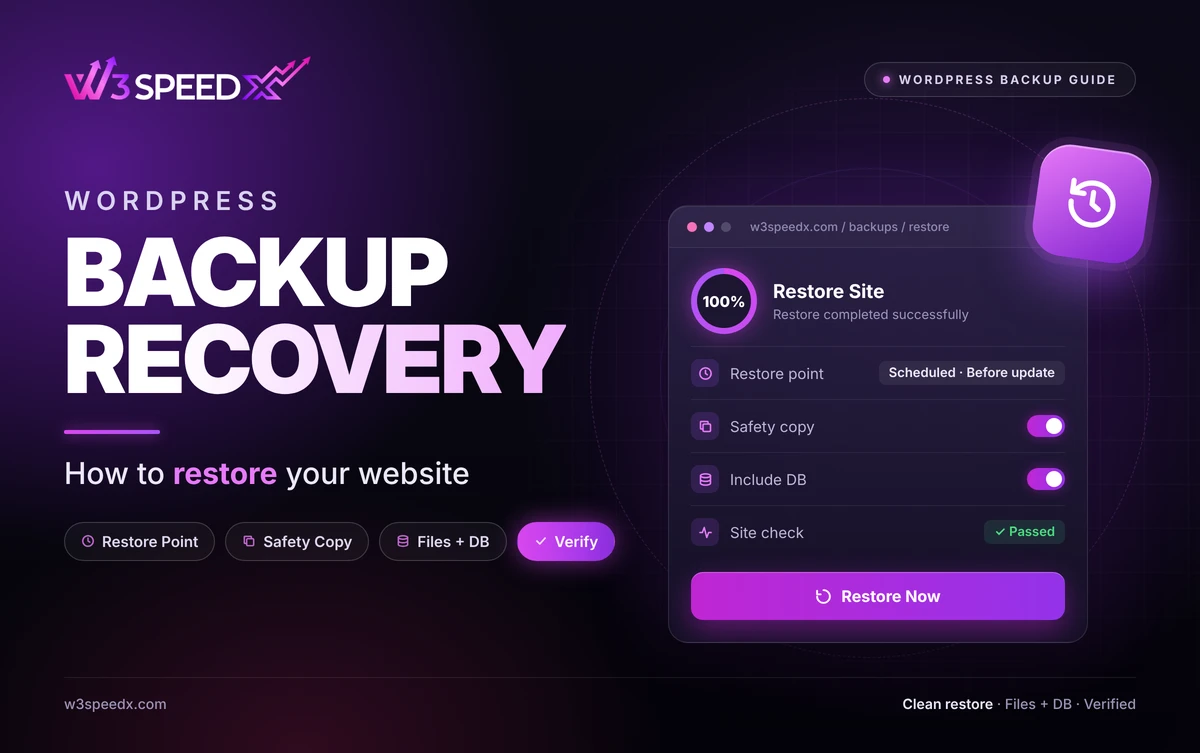
To restore WordPress backup copies with W3SpeedX, open the site's backup view. Each backup appears as a restore point, labelled manual or scheduled. Key features include:
- Restore points. You see manual and scheduled backups in one history.
- Include DB checkbox. It is on by default, so files and database restore together.
- Progress from 0 to 100 percent. You watch the restore run.
- Confirmation step. A restore cannot be undone, so you confirm first.
- ZIP downloads. You download a whole backup, or single files and folders, to restore by hand.
Run Backup Now before a restore. That manual backup is your safety copy. Plan details are on the WordPress Backup Service page.
Manual Backup Restoration
If you hold a ZIP and an SQL file, you can restore by hand. According to the WordPress developer documentation, you import the database with a tool such as phpMyAdmin. Then you upload the files with FTP.
Manual backup restoration takes more time and skill. It suits cases where a tool is not available. Keep the steps written down, because a crisis is a poor moment to learn them.
Disaster Recovery for WordPress Sites
According to The Hacker News, ransomware groups target backups, so recovery depends on a copy they cannot reach. This is why an offsite or protected copy belongs in every plan. Our backup security guide covers the controls.
Disaster recovery is the plan that returns you to a working site within a target time. It adds roles, steps, and contacts to the restore process. Write down who restores, where copies live, and what the RTO is.
Test the plan, not only the copy. According to NAKIVO, recovery planning for ransomware includes tested restores. Run it on a staging site within 30 days of any hosting change. Time each step. Fix what slows you down. A disaster recovery plan you have not run is a guess. The backup strategy guide shows how recovery fits the wider plan.
Clone Instead of Restore
Sometimes you want to keep the live site untouched. Cloning copies a site to a new target, so you can test a restore first. In W3SpeedX, cloning works on paid backup schedules, is owner-only, and runs one clone at a time. See Site Cloning and Restore for the steps.
After the Restore: Verify the Site
A finished restore is not a finished recovery. Verify the site before you announce it is back. Open the home page, a post, a form, and the admin area. Test checkout if you run a store. Check that recent content is present, and compare it to what you expect from the restore point.
Then look at the gap. Anything created after the restore point is gone. Note the time range, and re-create the missing posts or orders. A faster backup schedule shrinks that gap. Finally, watch uptime for 24 hours, because problems often appear after a restore. A downtime monitor alerts you if the site fails again.
Common Recovery Mistakes
- No safety copy. A failed restore leaves you with nothing.
- Restoring an infected copy. The problem returns.
- Skipping the database. The site shows old content or errors.
- No test. You learn the process during the outage.
- Forgetting caches. The old site appears after a good restore.
Case Study: How We Built Restore and Run Tracking
We built the backup schedule settings in September 2025. We added the Every 12 hours and Realtime options on 30 January 2026, 4 months in. We found that owners needed to see what ran and when. On 4 September 2026, we added a tracker for backup and restore runs.
In practice, a restore shows progress from 0 to 100 percent and asks for confirmation first. The result was fewer surprises, because a restore cannot be undone. We have revised the backup screens 102 times over 14 months. It turned out that owners trust a restore more when they can see its history.
A Quick Recovery Review
Review your recovery plan every 3 months. The review takes about 20 minutes.
Start with the copy. Confirm that a recent restore point exists and that one copy sits offsite. Then check the steps. Make sure the written restore process is current. Next, check access. Confirm that the right people can reach the dashboard and hosting.
Finally, run a test restore on a staging site and time it. Record the number as your real recovery time. If it is slower than your target, fix the slowest step before you need it.
Conclusion
WordPress backup recovery is the step that proves a backup works. Choose a clean restore point, decide whether to include the database, and take a safety copy first. Then run the restore, check the site, and record how long it took. A tested process turns a crisis into a routine task.
Run one test restore this week on a staging site. To keep restore points ready for many sites, see the WordPress Backup Service. For the full background, read the WordPress backup guide.
Frequently Asked Questions
What is WordPress backup recovery?
WordPress backup recovery is the process of turning a stored backup back into a working site. It restores both files and the database.
How do I restore a WordPress backup?
Pick a restore point, confirm what to restore, and run it. Then check the site and clear any caches.
Should I restore the database too?
Usually yes. Files without the database restore only half the site. Skip the database only when you want to roll back files alone.
How long does a restore take?
It depends on site size and your connection. Time a test restore on a staging site so you know your own number.
Which restore point should I choose?
Choose the latest copy from before the problem began. A clean point matters more than the newest one.
Can a restore be undone?
In W3SpeedX, no. A restore overwrites the site. Take a manual backup first so you can return to the current state.
What if the restore fails?
Try an earlier restore point. If that fails, restore the files and database separately, or download the ZIP and restore by hand.
What is the difference between a backup and disaster recovery?
A backup is a copy. Disaster recovery is the plan and process that returns you to a working site within a target time.
Can I restore a backup to a different site?
Yes, if the tool supports it. In W3SpeedX, cloning copies a site to a new target on paid schedules, owner-only, one at a time.
How often should I test restores?
Test a restore every 3 months, and after any big change to your hosting or backup setup.