

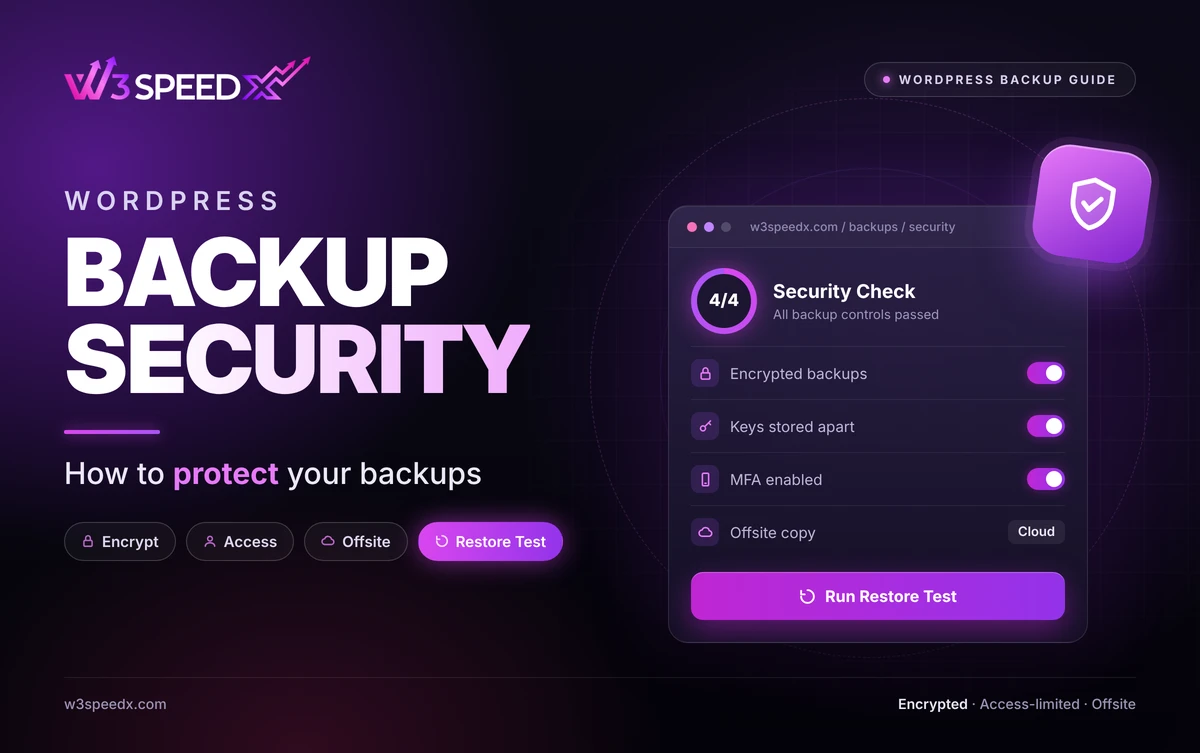
This guide is for site owners, freelancers, and agency teams who hold backups for sites that matter. Use it when backups exist but nobody has checked who can reach them. Skip it if your copies are encrypted, access-limited, and restore-tested. I have managed WordPress sites for 10+ years, and I have seen backup folders left open to the public. My team has worked on W3SpeedX backups for 14 months, since September 2025. This article is part of our WordPress backup guide series.
Key Takeaways
- A backup is a target. It holds your whole site and database.
- Encrypt the copies. Keep the keys apart from the backups.
- Limit access. Give each person only what the job needs.
- Keep one copy out of reach. Ransomware aims at backups first.
- Test restores. A copy you cannot restore gives no protection.
Key Differences Between Backup Threats
- Theft: An attacker copies the backup and reads your data. Encryption answers this.
- Tampering: An attacker changes or deletes the backup. Protected copies answer this.
- Loss: A failure destroys the only copy. Offsite copies answer this.
What Is WordPress Backup Security?
WordPress backup security is the practice of protecting backup files and database copies from theft, tampering, and loss. It covers where copies live, who can reach them, and how they are protected. It is one part of the wider backup plan in our backup strategy guide.
Most owners secure the live site and forget the copies. This is a gap. A backup contains the same data as the site, and it often has weaker protection. Secure WordPress backups need the same care as the live site.
Why Backups Become Targets
Attackers know that backups are your way out. According to The Hacker News, ransomware groups target backups so victims cannot recover without paying. Destroying the copies raises the pressure.
Site compromise is common. According to Patchstack's 2025 mid-year report, 6,700 new vulnerabilities were identified in the WordPress ecosystem in six months. An attacker who gets into the site may reach backups stored on it. This means backups on the same server need extra care. In my experience, the first thing owners lose in a hack is the backup folder.
What Backup Protection Covers
Backup protection has three layers. The first layer is storage, which means where the copy sits. The second is access, which means who can open it. The third is integrity, which means whether the copy stays unchanged and restorable.
A weak layer undoes the others. A copy in a safe place still fails if everyone on the team can delete it. A locked copy still fails if it is corrupt. Check all three layers together every 3 months, for about 15 minutes each time.
Encrypted Backups
Encrypted backups are copies scrambled with a key, so a stolen file is unreadable. According to The Hacker News, strong backup practice includes encryption alongside immutability, least privilege, multifactor authentication, and an air gap.
Encrypt copies in storage and during transfer. According to NAKIVO's ransomware backup guidance, use separate encryption keys. Do not store the key beside the backup it unlocks.
Control Who Can Reach Backups
Least privilege means each person gets only the access the job needs. A designer does not need to download a database copy. An agency should remove access when a contractor leaves.
Use multifactor authentication on every account that can reach backups. A stolen password then does not open them. Review access every 3 months. Remove accounts that no longer need it.
Protect One Copy from Changes
Ransomware encrypts or deletes what it can reach. Keep one copy that attackers cannot change. An immutable copy cannot be altered for a set period. An air-gapped copy sits offline, away from the network.
A downloaded ZIP on a local drive is a simple version of this. Disconnect the drive after the copy finishes. Pair it with a cloud copy, as the backup storage guide explains.
Ransomware Protection for Backups
Ransomware spreads through accounts and connected storage. It encrypts files, then asks for payment. If your backups sit on a connected drive or the same server, the attack reaches them too. This means distance and access limits matter more than speed.
Ransomware protection for backups rests on four steps.
- Keep copies offsite. A copy away from your host survives a server attack.
- Keep copies in two places. One cloud copy and one local copy.
- Alert on changes. According to NAKIVO, alerts for backup setting changes catch tampering early.
- Test the restore. You learn the copy works before the attack.
Speed also matters. A faster backup schedule means less data lost if you must roll back.
Backup Security Best Practices
These backup security best practices fit most sites. Encrypt copies and keep keys apart. Apply least privilege. Turn on multifactor authentication. Keep one protected copy offsite. Alert on changes to backup settings. Test a restore every 3 months. For the wider list, read our backup best practices.
Monitor Your Backups
Protection fails quietly when nobody watches. Check that each scheduled backup actually ran. Look at the last backup time and the storage used. A sudden drop in size, or a missed run, is a warning sign.
Check backup status every 7 days. A missing run points to a settings change or a full disk. Catching it within 7 days beats finding it after 3 months. Secure WordPress backups need this routine as much as encryption does. A downtime monitor also tells you when a site stops responding.
What To Do After a Security Incident
Act within the first 24 hours of a suspected attack, and follow a fixed order. First, isolate the site so the problem does not spread. Second, change passwords and keys for every account that can reach backups. Third, pick a clean restore point from before the attack. Restoring an infected copy brings the problem back.
Clean restore points need a history. This is why keeping several restore points matters. A single copy may already hold the infection. Test the clean copy on a staging site before you restore it to production.
Common Security Mistakes
- Backups stored in a public folder. Anyone with the URL can download them.
- One shared login for the team. You cannot tell who did what.
- Keys stored beside the backups. A thief gets both.
- No restore test. You find a broken copy during a crisis.
- One copy only. One failure ends your recovery.
How W3SpeedX Handles Backup Access
W3SpeedX stores backups in cloud storage, away from your host. A host compromise does not reach those copies. Key features include:
- Cloud storage away from your host. The copies sit apart from the live site.
- Owner-only cloning. Only the site owner can clone a site, and one clone runs at a time.
- Restore confirmation. A restore shows progress from 0 to 100 percent and cannot be undone.
- Restore points. Each is labelled manual or scheduled, so you see what ran.
- ZIP downloads. You download a whole backup, or single files and folders, for a local copy.
Layer your own controls on top, such as a protected local copy and tight team access. Plan details are on the WordPress Backup Service page.
Case Study: How We Built Access Limits
We built the backup schedule settings in September 2025. We added cloning on 2 April 2026. We found that cloning should not be open to every user. We limited it to site owners within 1 day. We fixed a permission-level problem in bulk updates in December 2025, 3 months after launch.
In practice, access rules shape each feature we build. The result was clear rules for who can clone, restore, and update. We have revised the backup screens 102 times over 14 months. It turned out that permission checks were easier to add early than to retrofit. See Site Cloning and Restore for the current rules.
A Quick Security Review
Review backup security every 3 months. The review takes about 15 minutes.
Start with access. List who can reach backups, and remove anyone who does not need it. Then check copies. Confirm that one sits offsite and that one is protected from changes. Next, look at keys and logins. Keys should sit apart from the backups, and multifactor authentication should be on.
Finally, test a restore. Restore a recent backup onto a test site and time it. A copy that restores is the only proof your protection works.
Conclusion
Strong backup security protects the one thing you rely on after a disaster. Encrypt copies, limit access, and keep one protected copy offsite. Turn on multifactor authentication. Watch for changes to backup settings. Then test a restore, because only a tested copy counts.
Pick one gap from this guide and close it today. To run scheduled cloud backups for many sites, see the WordPress Backup Service. For the full background, read the WordPress backup guide.
Frequently Asked Questions
What is WordPress backup security?
WordPress backup security is the set of controls that keep backup copies safe from theft, tampering, deletion, and loss.
Why do backups need protection?
A backup holds your whole site and database. If an attacker reaches it, they can steal data or destroy your way to recover.
Should WordPress backups be encrypted?
Yes. Encrypted backups stay unreadable if someone copies the file. Keep the encryption keys apart from the backups.
How do I protect backups from ransomware?
Keep one copy offsite that attackers can't change or delete. Limit access, use multifactor authentication, and test restores.
Who should have access to backups?
Only people who need them. Apply least privilege, and remove access when someone leaves the team.
Is a backup on the same server secure?
No. A hack or failure on that server can take the site and its backups together. Keep one copy elsewhere.
What is an immutable backup?
An immutable backup is a copy that nobody can change or delete for a set period. It resists ransomware.
How do I know my backups are safe to restore?
Test a restore on a staging site every 3 months. A restore test proves the copy is complete and usable.
Where does W3SpeedX keep backups?
W3SpeedX keeps backups in cloud storage, away from your host. Add a protected local copy through ZIP downloads for extra safety.
Who can clone or restore a site in W3SpeedX?
Cloning is limited to site owners and runs one clone at a time. A restore asks for confirmation and cannot be undone.