

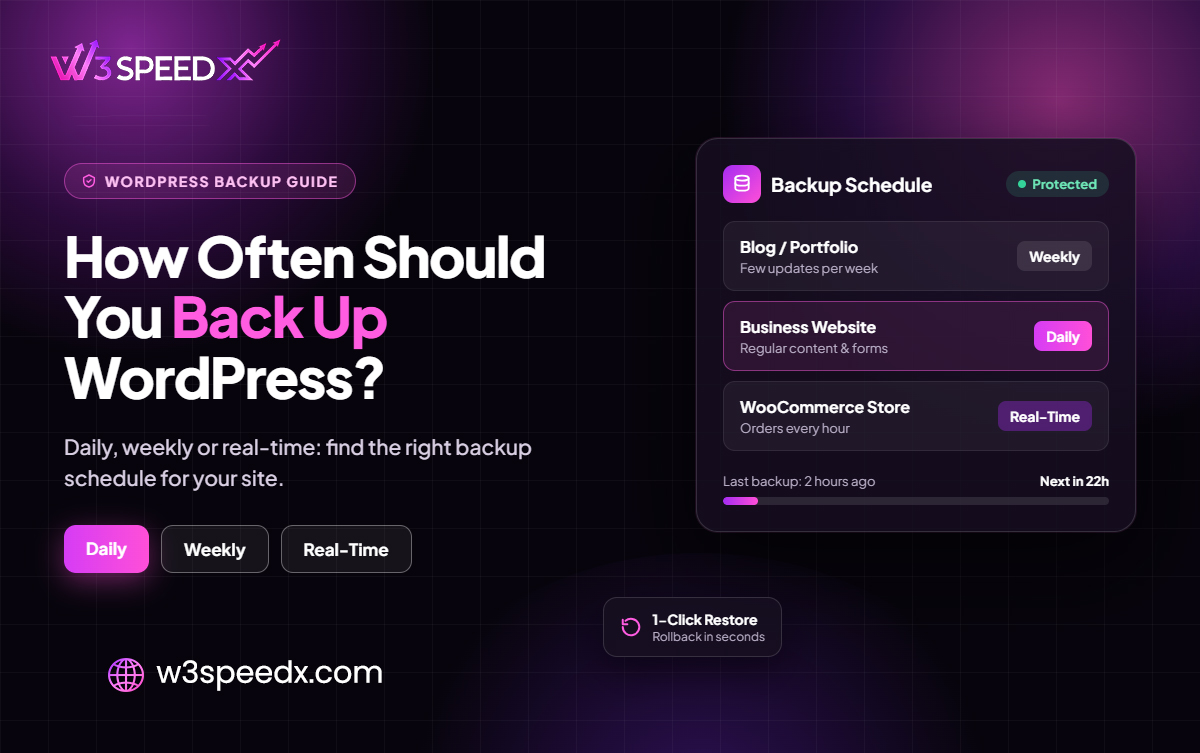
This guide is for site owners, freelancers, and agency teams who need to choose a backup schedule. Use it when you set up backups for the first time, or when a site's traffic or sales have grown. Skip it if you already know your data-loss limit and have a schedule that meets it. I have managed WordPress sites for 10+ years, and I have set backup schedules for many client sites. My team has worked on W3SpeedX backups for 14 months, since September 2025. This article is part of our WordPress backup guide series.
Key Takeaways
- Frequency follows change. The more often a site changes, the more often it needs a backup.
- The interval is your worst case. A 24-hour interval can lose up to 24 hours of changes.
- Stores need hourly backups. Orders arrive all day.
- Daily backups fit most active sites. Blogs and business sites rarely need more.
- Quiet sites can run weekly. Add a manual backup before each change.
- Cost rises with speed. Pick the slowest schedule that meets your limit.
What Is WordPress Backup Frequency?
WordPress backup frequency is how often a backup runs on your site. Website backup frequency is set by a backup schedule, which is a timetable of runs. The time between two runs is the backup interval. An automatic backup schedule runs those backups without your help.
Website backup frequency matters because every backup is a snapshot. Anything that changes after the snapshot is lost if the site fails before the next one. A shorter interval means a smaller loss.
How to Choose Your Backup Frequency
Answer three questions. Together they point to one schedule.
Question 1: How Often Does the Site Change?
Count the changes each day. A store takes orders and updates stock all day. A blog adds a post or two. A brochure site changes a few times a month. The more changes, the shorter your interval should be.
Question 2: How Much Data Can You Afford to Lose?
This question sets your recovery point objective. According to Splunk, a recovery point objective (RPO) is the most data loss an organization can tolerate after a disaster. Splunk's example is no more than 15 minutes of data loss.
For a WordPress site, the question is simple. If the site failed right now, how much recent work can you redo? One hour of orders is painful. One day of blog edits is usually fine.
Question 3: What Does Downtime Cost You?
A store loses sales each hour. A lead-generation site loses enquiries. A portfolio loses little. Higher costs justify faster schedules, because a faster schedule costs far less than a lost day of sales.
WordPress Backup Frequency by Site Type
Sources agree on the pattern. According to SiteCare's backup guide, e-commerce and membership sites should back up in real time or hourly. Blogs should back up daily. Small business and static sites can back up weekly. According to the WordPress developer documentation, smaller sites can back up weekly. High-activity sites should back up daily.
Site type |
Suggested frequency |
W3SpeedX schedule |
Price per site |
|
Online store |
Hourly or real time |
Hourly or Realtime |
5 USD |
|
Membership or forum site |
Hourly or daily |
Hourly or Daily |
5 USD or 2 USD |
|
Active blog or news site |
Daily |
Daily |
2 USD |
|
Business site, few edits |
Weekly |
Weekly |
1 USD |
|
Brochure or portfolio site |
Weekly or monthly |
Weekly or Monthly |
1 USD or Free |
Daily WordPress Backups: When Daily Is Enough
Daily WordPress backups suit most active sites. A daily backup loses at most 24 hours of changes. For a blog, that means a few posts or comments, which are easy to redo.
Choose daily backups when four things are true. The site changes every day. A day of lost changes is painful but recoverable. The site does not take payments all day. And you can redo a day of edits within an hour or two.
In W3SpeedX, Daily costs 2 USD per site each month. It is the usual starting point for a business site that updates often.
When You Need More Than Daily
Some sites cannot lose a day. Move to a faster schedule in these cases.
- Online stores. Orders and stock levels change every hour. A daily backup can miss a full day of orders.
- Membership and forum sites. Users post, join, and pay all day. Lost posts and sign-ups hurt trust.
- Sites with frequent editor activity. A team that publishes dozens of pages each day needs shorter intervals.
- Sites before a major launch or sale. Raise the frequency for the launch week, then lower it.
W3SpeedX offers three faster options. Every 12 hours costs 3 USD per site. Hourly costs 5 USD. Realtime is billed at the Hourly rate of 5 USD. Each step cuts the worst-case loss.
When Weekly or Monthly Is Enough
A quiet site does not need frequent backups. Your website backup frequency can stay low. A brochure site may change twice a month. A weekly backup loses at most 7 days of changes, and that is often a few small edits. A monthly backup suits a site that rarely changes.
The free Monthly schedule in W3SpeedX covers the lowest tier. Note one limit: the free Monthly schedule does not include site cloning. Every paid schedule does.
Quiet sites need one habit to stay safe. Run a manual backup before every change. A plugin update or a design edit can break a site the same day. The weekly point may be days old by then.
Backup Interval Explained: Your Worst-Case Loss
The backup interval tells you the most you can lose. Read the table as a trade-off between cost and risk.
Schedule |
Backup interval |
Worst-case data loss |
Price per site |
|
Monthly |
About 30 days |
About 30 days of changes |
Free |
|
Weekly |
7 days |
7 days of changes |
1 USD |
|
Daily |
24 hours |
24 hours of changes |
2 USD |
|
Every 12 hours |
12 hours |
12 hours of changes |
3 USD |
|
Hourly |
1 hour |
1 hour of changes |
5 USD |
Compare each row with your data-loss limit. If 24 hours is too much, move up one row. If 1 hour is more protection than you need, move down.
Remember that the worst case is not the typical case. A site that fails halfway through the interval loses about half of it on average. The worst case still matters, because failures do not wait for a good moment.
Set an Automatic Backup Schedule
An automatic backup schedule removes the human from the routine. People forget a manual backup. A schedule does not. Set it once per site, then check that it runs.
Follow these steps:
- Rank your sites. Put stores first, active blogs next, and quiet sites last.
- Pick a schedule for each site. Use the table above and your data-loss limit.
- Set the schedule per site. In W3SpeedX, each site has its own schedule.
- Add a manual backup before changes. Use Backup Now before updates and migrations.
- Check the dates. Look at each site's last backup and next backup in the dashboard.
For updates across many sites, see Bulk Plugin and Theme Updates. Take a manual backup first, then update.
What Your Backup Frequency Costs
Cost grows with speed, so price each site by its tier. Take a portfolio of 10 sites. One store runs Hourly at 5 USD. Three blogs run Daily at 2 USD each, which is 6 USD. Six brochure sites run Weekly at 1 USD each, which is 6 USD. The total is 17 USD per month.
Compare that with a flat bundle. A bundle covers up to 100 sites for 100 USD per month, with every W3SpeedX module included. At 2 USD per site, 50 daily sites cost 100 USD. Beyond 50 daily sites, the bundle costs less. For a mixed portfolio, price each site by tier, then compare the total with the bundle.
See the WordPress Backup Service page for plan details. To build a full plan around your schedule, read our WordPress backup strategy post. For habits that keep backups usable, read the WordPress backup best practices post.
Common Backup Frequency Mistakes
These mistakes cause most data loss. Each one is easy to fix.
- One schedule for every site. A store and a brochure site need different intervals.
- Weekly backups on a busy store. A week of orders is too much to lose.
- Hourly backups on a quiet site. You pay for protection the site does not need.
- Skipping the pre-change backup. A schedule does not replace a backup before an update.
- Setting a schedule and forgetting it. Traffic grows, and a blog can become a store.
- Not checking that backups ran. A failed backup leaves a gap without warning.
- Keeping only one restore point. A problem that started earlier needs an older point.
Case Study: How We Built the Schedule Options
We built the backup schedule settings in September 2025. We added the Every 12 hours and Realtime options on 30 January 2026, 4 months in. We found that pricing needed fixes, in February 2026 and again in April 2026. On 4 September 2026, we added a tracker for backup and restore runs.
In practice, each site has its own schedule, so a store and a brochure site can differ. The result was a schedule menu with 6 options, from Monthly to Realtime. We have revised the backup screens 102 times over 14 months. The work taught us that a schedule only helps if you can see when the last backup ran. So the dashboard shows each site's last backup, next backup, and storage used.
A Quick Frequency Review
Review your schedules once a quarter. It takes about 10 minutes.
Start with change. Ask whether each site changes more or less often than it did 3 months ago. A blog that added a shop now needs a faster schedule. A campaign site that ended can move down.
Next, compare each schedule with your data-loss limit. Read the worst-case loss in the interval table. If it is more than you can redo, move up one step. Then confirm that a manual backup runs before every update. Check that each site shows a recent last backup date.
Finally, test a restore. A fast schedule only helps if the restore works. Restore a recent backup onto a test site every 3 months, and time it.
Conclusion
Your WordPress backup frequency should follow your data-loss limit. Stores need hourly or real time backups. Active blogs suit daily backups. Quiet sites suit weekly ones. Add a manual backup before every risky change, whatever the schedule.
Check your schedule against this guide today. Start with your most active site, because it loses the most when a backup is late. To set a schedule for each site, see the WordPress Backup Service. For the full background, read the WordPress backup guide.
Frequently Asked Questions
How often should I back up my WordPress site?
Match the schedule to how much data you can lose. Stores need hourly or real time backups. Active blogs suit daily ones, and quiet sites suit weekly ones.
Are daily WordPress backups enough?
For most active blogs and business sites, yes. A daily backup loses at most 24 hours of changes. Stores and membership sites need faster schedules.
What is a backup interval?
A backup interval is the time between two backups. It sets your worst-case data loss. A 24-hour interval can lose up to 24 hours of changes.
What is the best backup schedule for an online store?
Hourly or real time, because orders arrive all day. A daily backup can miss a full day of orders.
How often should a small business site back up?
Weekly is enough for a site with occasional edits. Run a manual backup before each plugin update or design change.
Can I back up too often?
Yes, for a quiet site. Extra backups cost more and add no protection when nothing changes. Choose the slowest schedule that meets your data-loss limit.
What is an automatic backup schedule?
It is a timetable that runs backups without your help. Each site gets its own schedule. You still run manual backups before risky changes.
Does a faster backup schedule cost more with W3SpeedX?
Yes. Monthly is free. Weekly costs 1 USD per site, Daily 2 USD, Every 12 hours 3 USD, and Hourly 5 USD. Realtime is billed at the Hourly rate.
Can each site have its own backup frequency?
Yes. In W3SpeedX, each site has its own schedule. Changing one site's schedule leaves your other sites unchanged.
Should I back up before updating plugins?
Yes. Run a manual backup before every update, whatever the schedule. It gives you a restore point taken just before the change.