

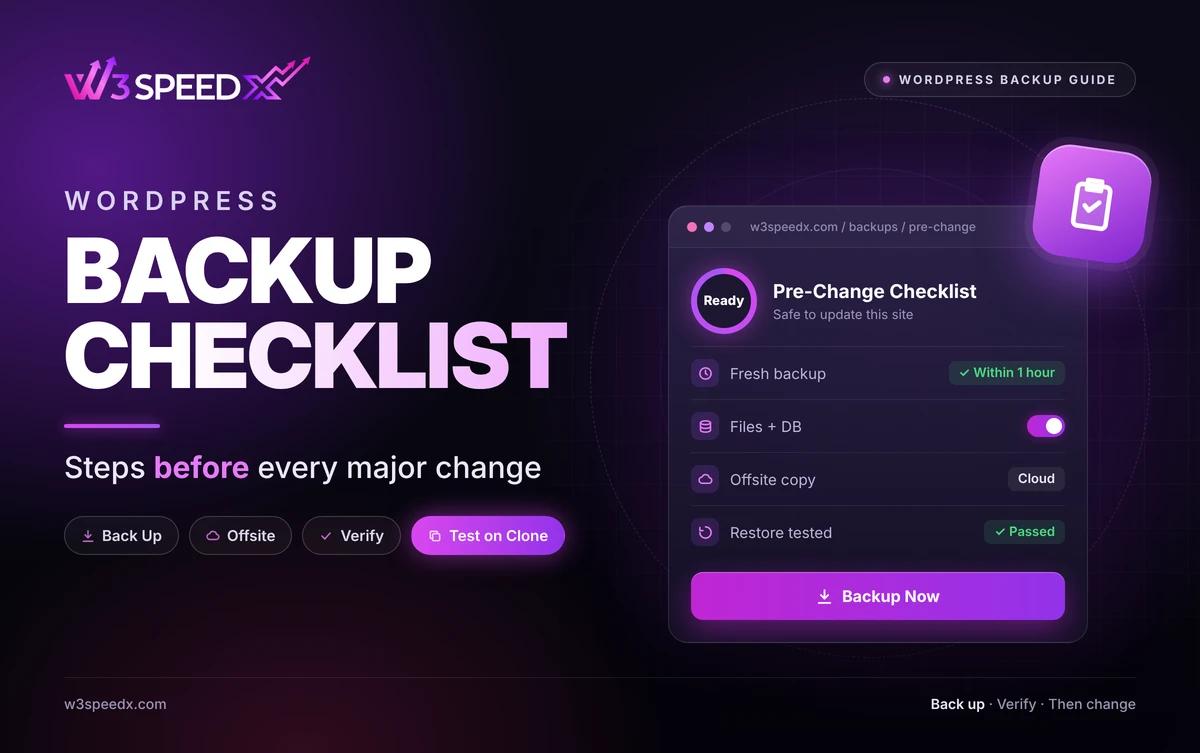
This guide is for site owners, freelancers, and agency teams who update, migrate, or redesign live sites. Use it before a plugin update, a host move, a theme switch, or a redesign. Skip it if your team already runs a written, tested pre-change routine. Across 10+ years of managing WordPress, I have seen single unchecked updates take stores offline. My team has built W3SpeedX backups for 14 months, since September 2025. This article belongs to our WordPress backup guide series.
Key Takeaways
- Back up within the hour. A fresh restore point holds your latest content.
- Capture both halves. Files and database restore together.
- Verify before you trust. A restore test beats a file size.
- Store one copy offsite. Your host can fail alongside your site.
- Keep the restore point. Hold it until the change proves stable.
Key Differences Between Types of Change
- Updates: Small and frequent. A quick on-demand snapshot is enough.
- Migrations: Large and risky. They need a full copy stored in two places.
- Redesigns: Long and messy. They benefit from a clone for testing first.
What Is a WordPress Backup Checklist?
A WordPress backup checklist is an ordered routine you follow before a major change. It lets you roll back if the change fails. It covers what to copy, how to verify it, and where to keep it. Each step below comes with its reason, so the routine is easy to remember. Think of it as a website backup checklist written in plain prose, or a WordPress safety checklist you can recite.
Every step answers one risk. According to the WordPress developer documentation, a full restore needs both the database and the files. The routine below secures both halves before you touch anything. It works as a WordPress safety checklist for every release.
Why Back Up Before Every Major Change
Modifications derail sites in surprising ways. A plugin release may collide with your theme. A migration may drop a table, and a redesign may overwrite a template. Each mishap is a quick repair with a recent copy on hand, yet a painful rebuild without one.
A scheduled run does not erase this exposure, because it may have fired many hours earlier. Anything published since would vanish on rollback. This means a manual backup right before the change is the only copy that holds everything. Our post on backup frequency explains how schedules and manual copies fit together.
Step 1: Decide What the Change Touches
Begin by naming the change and its reach. One plugin update touches plugin files, whereas a migration touches everything. A theme switch alters templates, widgets, and settings.
Summarise the scope in one sentence, then list the affected sites and the people to warn. This backup preparation sets the size of your safety net.
Step 2: Check Your Last Backup
Look at the date and the size of your most recent backup. A copy from last month offers little cover, and a suspiciously small file hints at gaps.
If the last copy is older than a day and your site changes often, plan a fresh one. In W3SpeedX, the status view shows last backup, next backup, and storage used. The check takes seconds.
Step 3: Run a Fresh Backup
Launch a new backup within 1 hour of the change. Capture files and the full database, since a partial archive restores a partial site. Label it for easy recognition later.
In W3SpeedX, Backup Now creates an on-demand restore point, labelled manual. Scheduled points sit beside it on the same calendar. Use exclude patterns to skip cache folders, which keeps the copy lean. See the WordPress Backup Service page for details.
Step 4: Store a Copy Away From Your Host
A copy on the same server fails with the server. According to TechRadar, keep 3 copies on 2 media types, with 1 copy offsite. For a pre-change routine, that means a cloud copy plus a local download.
W3SpeedX stores backups in cloud storage, away from your host. ZIP downloads give you the local copy, either as a whole backup or as single files and folders. Our backup storage guide covers the options.
Step 5: Verify the Copy
An untested backup is a hope, not a safeguard. Check the size and date first. Then restore it to a staging site, or clone the site, and open the main pages.
Time the test, and treat it as part of your website backup checklist. If a restore takes 20 minutes on staging, you know the real cost of a rollback. In my experience, owners who test once find at least one gap, such as a missing upload folder. Read our recovery guide for the restore steps.
Step 6: Test the Change on a Clone
Avoid experiments on the live site. A clone hands you a private sandbox to break. In W3SpeedX, cloning works on paid backup schedules, is owner-only, and runs one clone at a time. See Site Cloning and Restore.
Apply the update or redesign on the clone first. Click through key pages, forms, and checkout. Fix problems there, out of public view.
Step 7: Make the Change and Verify
Now apply the change to the live site. Pick a quiet hour with light traffic. Afterward, open the home page, a post, the admin screen, and any form or checkout.
Watch the site for 24 hours, because some problems appear only later. A downtime monitor alerts you if the site stops responding.
Step 8: Keep or Roll Back
When the site behaves, retain the restore point for at least 7 days. When it falters, roll back to the point you created in step 3. In W3SpeedX, a restore includes the database by default and cannot be undone, so confirm before you run it.
Then record what failed, which smooths the next release.
Backup Before Update: Plugins and Themes
A backup before update is the most common use of this routine. Plugin and theme updates break sites often, because code from many authors must work together. This means each update carries a small risk, and that risk adds up across many sites.
For many sites, update in groups. Back up first, then run the bulk plugin and theme updates from one dashboard. Check each site afterward.
Backup Before Migration: Moving Hosts or Domains
A backup before migration needs extra care, because a move touches files, database, and domain settings at once. Download a full copy to your own computer. Leave the old host running until the new one passes inspection.
Plan 2 to 3 days of overlap and compare page counts and media on both sides. Cancel the old plan afterward.
Problems This Checklist Solves
- "An update broke my site." The fresh restore point returns it.
- "I lost recent posts after a rollback." A backup within the hour holds them.
- "My migration dropped data." A full copy in two places covers it.
- "I cannot tell if my backup works." A restore test answers it.
- "I manage many sites and skip steps." A fixed routine removes guesswork.
Alternatives to Consider
Other platforms support pre-change backups too. Compare before committing.
- ManageWP. According to Post Status, ManageWP rebuilt its platform as Orion, pricing paid features per site or in bundles. Read W3SpeedX vs ManageWP.
- MainWP. According to the MainWP cart page, Pro costs 29 USD monthly. It costs 199 USD yearly, or 599 USD for a lifetime licence. Read W3SpeedX vs MainWP.
A single backup plugin works for one site. It adds setup work across a portfolio.
Case Study: How We Built Pre-Change Safety
We built the bulk update dashboard in September 2025. We found that update permissions needed tightening, so we fixed the permission level in December 2025, 3 months in. We added cloning on 2 April 2026 and limited it to owners within 1 day. On 4 September 2026, we added a tracker for backup and restore runs.
In practice, each step in this routine matches a real screen. The result was a flow where Backup Now, a clone, and a restore point sit within a few clicks. We have revised the backup screens 102 times over 14 months. It turned out that owners use Backup Now most often right before an update.
A Quick Pre-Change Review
Before any major change, spend about 10 minutes on a final backup preparation review.
Confirm a restore point from the last hour exists, and check one copy sits away from your host. Know how long a restore takes and who can run it. Then make sure the change window avoids peak traffic.
Finally, set your rollback trigger in advance, as part of backup preparation. If key pages fail within 30 minutes, restore. Deciding early removes panic later.
Conclusion
A WordPress backup checklist turns a risky change into a controlled one. Back up within the hour, confirm the copy, store it away from your host, and test on a clone. Then change, verify, and keep the restore point until the site proves stable. A few minutes of preparation saves hours of repair.
Run the first three steps before your next update. To create restore points on demand, see the WordPress Backup Service. For the full background, read the WordPress backup guide.
Frequently Asked Questions
What is a WordPress backup checklist?
A WordPress backup checklist is an ordered set of steps you follow before a major change. It confirms you can roll back if something breaks.
When should I back up my WordPress site?
Back up right before any major change, such as an update, a migration, a redesign, or a theme switch.
Why back up before updating plugins?
Updates can conflict with other plugins or your theme. A fresh backup lets you restore the working version in minutes.
What should a backup before migration include?
Include all files and the full database. Download a copy to a separate location before you move anything.
How do I verify a backup is good?
Check the size and date, then restore it to a staging site. Only a restore proves the copy works.
How long before a change should I back up?
Back up within 1 hour of the change, so the restore point holds your latest content.
What if I skip the backup?
A failed change then has no safe rollback. You may rebuild from an old copy, or lose recent content.
Do I need a backup if I have daily backups?
Yes. A manual backup right before the change captures work done since the last scheduled run.
How does W3SpeedX help before a major change?
Backup Now creates an on-demand restore point. Restore points are labelled manual or scheduled, and ZIP downloads give a local copy.
Can I test a change before touching the live site?
Yes. Cloning copies a site to a new target on paid schedules. It is owner-only and runs one clone at a time.