

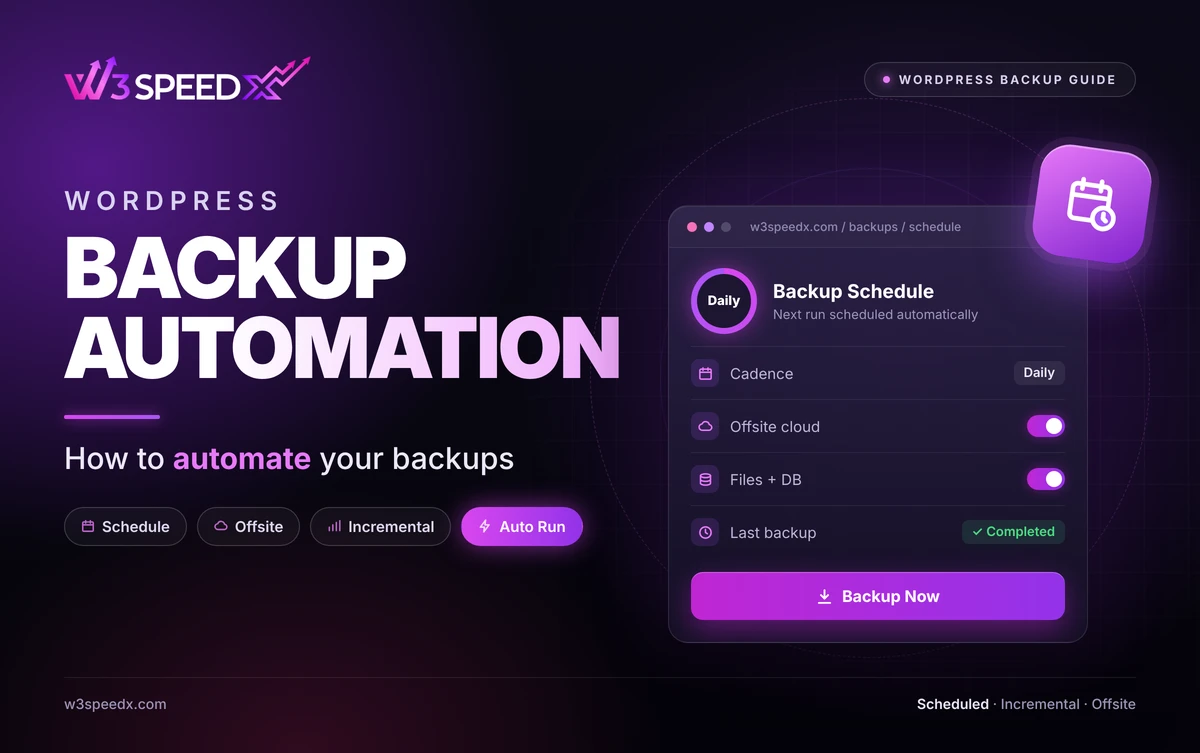
This guide is for site owners, freelancers, and agency teams who still export databases by hand. Use it when you forget backups, juggle many client sites, or lose evenings to uploads. Skip it if every site already follows a schedule with offsite storage. Over 10+ years of managing WordPress, I have watched manual routines collapse within weeks. My team has built W3SpeedX backups for 14 months, since September 2025. This article belongs to our WordPress backup guide series.
Key Takeaways
- Manual routines fail quietly. They rest on memory, which fades.
- Start with the schedule. Offsite storage comes second.
- Keep one human step. Snapshot before every risky change.
- Match cadence to change. Busy stores outpace quiet blogs.
- Review status weekly. Automation still deserves a glance.
Key Differences Between Manual and Automated Work
- Trigger: A person starts a manual copy. A clock starts an automated one.
- Consistency: A schedule repeats identical steps, while people skip them.
- Scale: Hand work multiplies with every site. Automation needs one setting per site.
What Is WordPress Backup Automation?
WordPress backup automation is a schedule-driven process that copies files and the database without manual steps. A tool creates each snapshot, stores it, and logs it. You inspect results rather than perform chores.
Automated copies hold the same content as manual ones. According to the WordPress developer documentation, a full restore needs both the database and the files. Solid tooling captures both on every run.
Why Manual Routines Break Down
A manual backup demands three separate actions: export the database, copy the files, and store the archive somewhere safe. Any one can be skipped. In my experience, a hand-built routine survives two or three weeks. Then a hectic week arrives, and nothing gets saved.
The damage surfaces later. A site crashes, and the newest archive is months old. This means a lapse in your routine becomes a lapse in your recovery, because no copy exists to restore. Our comparison of manual vs automated backups weighs both approaches.
Problems Automation Solves
Owners describe their pain in plain language.
- "I forget." A clock keeps time for you.
- "I run 20 sites." One dashboard assigns each a cadence.
- "I lost a day of orders." A tighter interval narrows the gap.
- "My copies sit on my host." Automated offsite storage relocates them.
- "Did last night's run work?" A status view shows the latest and upcoming runs.
- "Updates keep breaking things." Snapshot first, then roll back if needed.
Scheduled Backups: Choose a Cadence
Scheduled backups fire at a fixed interval, so pick that interval from your tolerance for lost data. According to Splunk, a recovery point objective (RPO) is the most data loss an organization can accept after a disaster. Your cadence sets that ceiling.
According to SiteCare's backup guide, frequency should follow how often content changes. Brochure sites suit a weekly rhythm. Shops and membership portals need daily or faster runs, which means more restore points. Our backup frequency guide walks through each tier.
Which Parts of the Workflow to Automate
Backup workflow automation reaches beyond the copy itself. Automate these stages.
- Triggering. A tool launches each run on time.
- Transfer. Every snapshot travels to cloud storage away from your host.
- Retention. Old restore points expire under rules you define.
- Reporting. A status view lists last run, next run, and storage consumed.
Two stages stay manual. Snapshot before each update or migration, and rehearse a restore every 3 months. Both demand judgment that a schedule lacks.
Automatic Website Backup With W3SpeedX
W3SpeedX is a WordPress management platform with cloud backup built in. It performs an automatic website backup on whichever cadence you assign to each site. I reviewed the dashboard code to confirm the details below. Key features include:
- Six cadences. Monthly, Weekly, Daily, Every 12 hours, Hourly, and Realtime.
- Incremental runs. Each pass stores only what changed.
- Files plus database. Both are captured together.
- Offsite cloud storage. A host failure leaves your snapshots intact.
- Backup Now. You trigger an on-demand copy.
- Exclude patterns. Cache folders stay out, keeping archives slim.
- Labelled restore points. Each is tagged manual or scheduled.
- Status view. The dashboard shows last backup, next backup, and storage used.
Monthly is free. Weekly costs 1 USD per site, Daily 2 USD, Every 12 hours 3 USD, and Hourly 5 USD. Realtime is billed at the Hourly rate. A bundle covers up to 100 sites for 100 USD per month. See the WordPress Backup Service and Pricing pages.
Setting Up Automated Backups
Five steps get a site protected.
- Inventory your sites. Note how frequently each changes.
- Select a cadence. Tie it to your RPO.
- Verify offsite storage. Snapshots must live away from the host.
- Add exclusions. Skip caches to save space.
- Rehearse one restore. Prove the archive works first.
One site takes about 15 minutes. For many sites, assign a cadence to each from a single dashboard. The backup strategy guide places automation inside a larger plan.
Keeping Control While You Automate
Automation does not surrender control. You still pick cadence, exclusions, and restore points. You also decide who may edit settings. A sound backup workflow automation setup logs every run, so you can see what happened.
Set three guardrails. Revisit the cadence whenever a site changes sharply, because a shop that adds memberships needs faster runs. Keep a manual snapshot for risky work. Watch storage growth, which signals that retention needs trimming within 30 days. The backup best practices cover upkeep further.
Agencies and Multi-Site Portfolios
Agencies feel manual pain first. Each client adds another chore. Across 20 sites, a weekly hand backup becomes 20 tasks every week.
A dashboard converts those 20 tasks into 20 settings, configured once. One list reveals which sites ran and which stalled. The real saving is attention rather than minutes.
Alternatives to Consider
Other platforms also automate backups. Compare before committing.
- ManageWP. According to Post Status, ManageWP rebuilt its platform as Orion, pricing paid features per site or in bundles. Read W3SpeedX vs ManageWP.
- MainWP. According to the MainWP cart page, Pro costs 29 USD monthly. It costs 199 USD yearly, or 599 USD for a lifetime licence. Read W3SpeedX vs MainWP.
A per-site plugin is another route. It fits a lone site, yet it multiplies setup work across a portfolio.
Pitfalls to Avoid
- Automating without offsite copies. Snapshots stay vulnerable beside the host.
- Set-and-forget. A failed run goes unnoticed.
- Skipping the pre-update snapshot. The restore point turns stale.
- One cadence for every site. Shops and blogs differ.
- Skipping restore rehearsals. Broken archives surface during crises.
Case Study: How We Built Backup Automation
We built the schedule settings in September 2025. We added the Every 12 hours and Realtime options on 30 January 2026, 4 months in. We tested the schedule pricing against the live dashboard. We found that pricing needed corrections, in February 2026 and again in April 2026. On 4 September 2026, we added a tracker for backup and restore runs.
In practice, automation demands visibility, because a silent failure defeats the purpose. The result was a dashboard displaying each site's last backup, next backup, and storage used. We have revised the backup screens 102 times over 14 months. It turned out that owners trust a schedule more once every run is visible.
A Quick Automation Review
Audit your setup every 3 months, spending roughly 15 minutes.
Begin with coverage: does every site carry a schedule? Next, inspect storage, confirming snapshots sit away from your host. Then read the latest run for each site, since a missed run needs fixing today.
Finish by restoring an automated copy onto a staging site and timing it. Our recovery guide lists the steps. Automation counts only when the copy restores.
Conclusion
WordPress backup automation removes the weakest link in any backup plan, which is memory. Set a schedule that matches your site, store copies offsite, and keep a manual backup for risky changes. Then watch the last backup time, and test a restore every 3 months.
Pick one site and set its schedule today. To automate backups across many sites, see the WordPress Backup Service. For the full background, read the WordPress backup guide.
Frequently Asked Questions
What is WordPress backup automation?
WordPress backup automation is the use of schedules and tools to back up a site without manual steps. You set it up once, and it runs on its own.
What are automated backups?
Automated backups are copies of your files and database that a tool creates on a schedule. No one has to start them.
What should I automate first?
Automate the scheduled backup and its offsite storage. Keep a manual backup for moments before updates and migrations.
How often should scheduled backups run?
Match the schedule to how often the site changes. A blog can use weekly. A store needs daily, hourly, or faster.
Can I automate backups for many sites?
Yes. A dashboard service sets a schedule per site and shows every site in one list.
Do automatic website backups slow my site?
A tool that runs the work away from your site keeps the load low. Plugins that run on your server can add load.
Should I still run manual backups?
Yes. Run one right before an update, a migration, or a theme change, so the restore point is fresh.
How do I know automation is working?
Check the last backup time and storage used every 7 days. A missed run or a size drop is a warning sign.
Which schedules does W3SpeedX offer?
Monthly is free. Weekly costs 1 USD per site, Daily 2 USD, Every 12 hours 3 USD, and Hourly 5 USD. Realtime is billed at the Hourly rate.
Is there a bundle for many sites?
Yes. A bundle covers up to 100 sites for 100 USD per month.